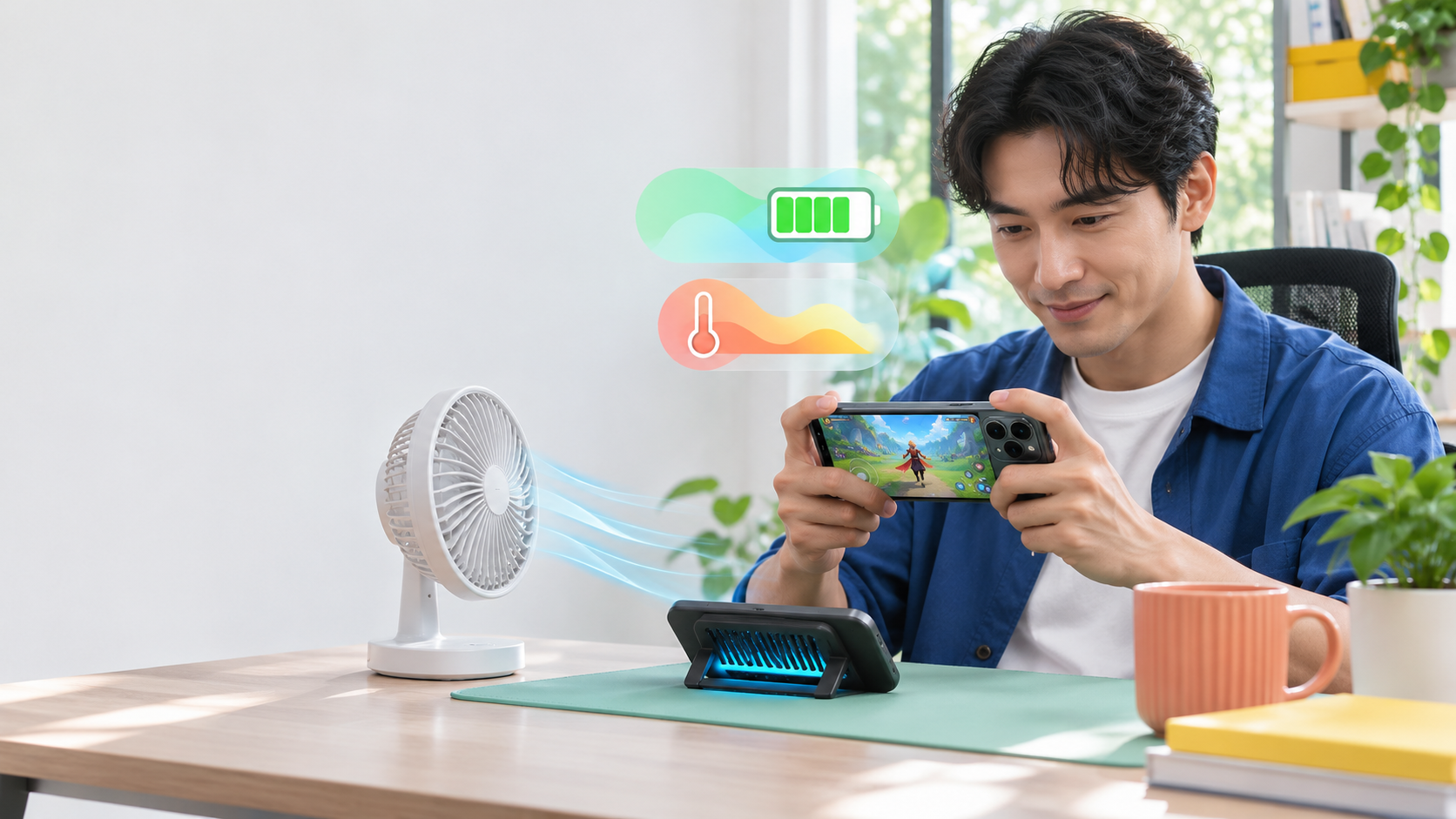
A phone becoming warm during gaming is not automatically a sign of damage. Games require the processor, graphics hardware, display, network connection, and battery to work simultaneously, so some heat is expected. Problems begin when the device becomes uncomfortable to hold, performance repeatedly slows, or the battery drains unusually quickly. Whether someone is playing a downloaded title or accessing a browser-based platform such as E39, a few practical adjustments can make mobile sessions cooler and more stable.
Contents
Understand Where the Heat Comes From
The processor and graphics unit generate heat while calculating game logic, animations, and visual effects. A high screen refresh rate, maximum brightness, mobile data, background downloads, and location services can increase the total workload. Heat also accumulates faster when the phone is used in direct sunlight or placed on a soft surface that traps warm air.
Modern phones may reduce performance automatically when their internal temperature rises. This protective behavior, commonly called thermal throttling, can appear as slower animations, delayed input, or an inconsistent frame rate. Continuing to increase graphics settings will not solve the problem because the device is deliberately limiting its own speed.
Reduce Display Demand First
The display is one of the largest sources of battery consumption. Lowering brightness to a comfortable level can produce an immediate improvement without significantly changing gameplay. Automatic brightness may work well indoors, but it can raise the screen unnecessarily near a bright window. Manual control provides more predictable results during longer sessions.
If the game offers several frame-rate options, choose a stable setting rather than the highest available value. A consistent moderate frame rate often feels better than a higher target that causes repeated heating and slowdown. Reducing shadows, reflections, particle effects, and rendering resolution can further lower the graphics workload.
Avoid Gaming While Fast Charging
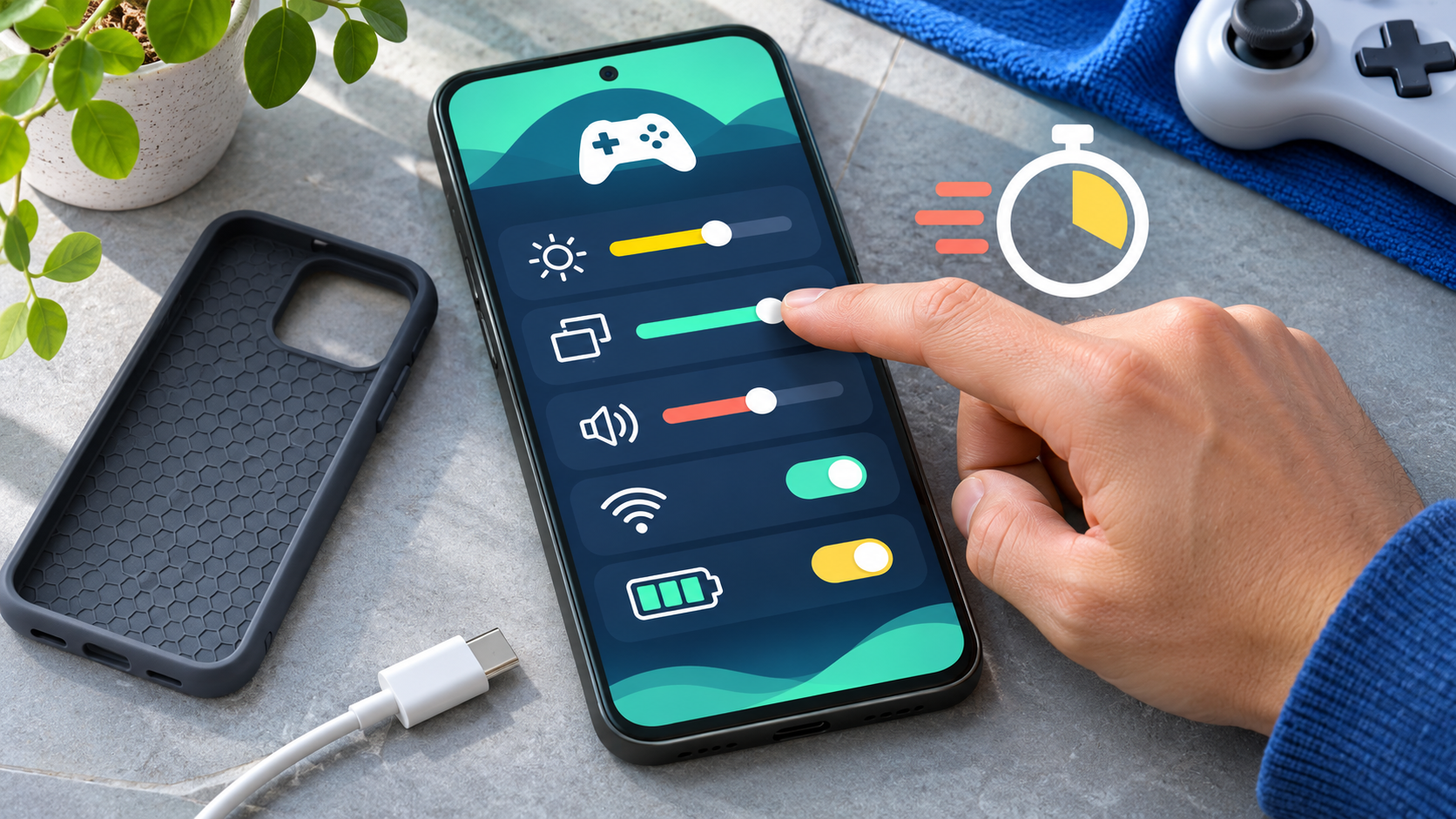
Charging already generates heat, particularly when the battery is accepting power quickly. Running a demanding game at the same time adds processor and display heat to the same small enclosure. Whenever possible, charge the device before beginning rather than keeping it connected throughout the session.
If gaming while connected is unavoidable, use a compatible charger in a ventilated location and stop if the phone becomes excessively hot. Damaged cables, unverified adapters, and covered charging surfaces should be avoided. Placing a warm phone in a refrigerator or against ice is also inappropriate because sudden temperature changes can create moisture inside the device.
Remove Heat-Trapping Accessories
Thick protective cases can slow the release of heat, especially when they are made from dense rubber or contain multiple layers. Removing the case temporarily may help during a demanding session, provided the phone can be handled safely and placed on a stable surface.
A simple stand can improve airflow around the back of the device. External cooling accessories may also help, but they should not block buttons, charging ports, or wireless antennas. A cool room and regular breaks are usually more useful than attempting to force the phone to remain cold continuously.
Control Background Network Activity
Cloud backups, application updates, video uploads, and file synchronization can continue while a game is running. These tasks compete for processor time, network bandwidth, and battery power. Pause unnecessary transfers and close applications that are actively using navigation, video, or the camera.
Use a stable Wi-Fi connection when available instead of constantly switching between weak wireless and mobile signals. A phone may consume additional power while searching for a reliable network. However, repeatedly closing every background application is unnecessary; focus on services that are clearly transferring data or using location features.
Keep Sign-In Attempts Efficient
Repeated page refreshes and failed authentication attempts create additional network activity without improving performance. Before using a page such as đăng nhập e39, confirm the address, connection quality, and account details. Completing authentication once through the correct destination is more efficient than opening several tabs or repeatedly requesting verification codes.
Do not disable essential account protections merely to save battery. Security settings normally consume very little power compared with the screen and graphics processor. Instead, close unused browser tabs after signing in and avoid leaving animated pages running behind the active game.
Use Short Breaks to Stabilize Performance
A brief pause allows heat to leave the device and gives the battery a break from sustained demand. Lock the screen, place the phone on a hard surface, and let it return to a comfortable temperature naturally. This is also a useful time to rest the hands and eyes.
Persistent overheating during light activity may indicate a software problem, a failing battery, or another hardware issue. Restart the phone, install trusted system updates, and check battery-health information when available. A swollen battery, lifting screen, unusual smell, or sudden shutdown requires professional inspection rather than further testing.
Choose Stability Over Maximum Settings
Efficient mobile gaming depends on balance. Moderate brightness, sensible graphics settings, reliable connectivity, safe charging habits, and periodic breaks usually provide a smoother experience than running every option at maximum. Monitoring how the phone responds is more useful than following one universal configuration because devices differ in cooling design, battery condition, and processing capacity.