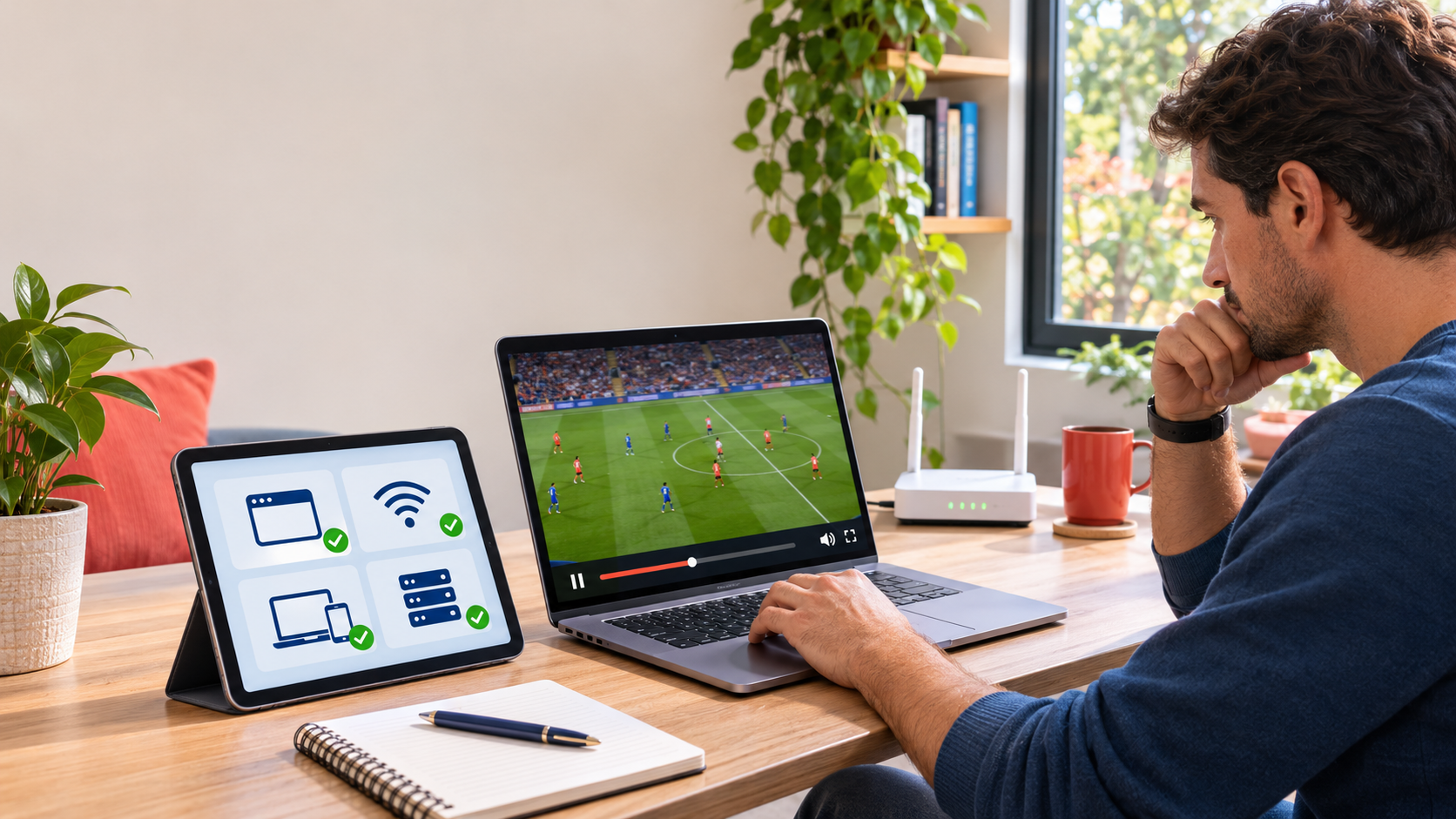
A football stream can fail for many ordinary reasons: an expired page, browser data, weak Wi-Fi, an incorrect device clock, limited memory, or a temporary service outage. The correct response is to identify the layer that failed rather than installing the first extension suggested by a pop-up. Even a page presented as Xem trực tiếp bóng đá Xoilac tv không bị chặn should be checked for authenticity, lawful availability, and safe device behavior before playback begins.
Contents
Identify What Is Actually Failing
Start by separating a page problem from a video problem. If the website does not open at all, record the browser message and test another ordinary website. If the page loads but the player remains blank, the issue may involve scripts, media permissions, an expired event, or the stream itself.
When video appears without sound, check the player’s mute control, system volume, and selected audio output. When sound plays over a frozen image, reduce video quality once and observe whether playback recovers. Avoid changing several settings simultaneously because that makes the real cause harder to identify.
Verify the Address and Device Basics
Type or open the intended address carefully instead of following shortened links from messages. A page using the name Xoilac tv can still be imitated through spelling changes or misleading subdomains, so inspect the complete domain before entering information or allowing notifications.
Confirm that the device date, time, and time zone are correct. Secure connections and event schedules can behave unexpectedly when the clock is far from the actual time. Restart the browser, then restart the device if it has been running for a long period or recently completed an update.
Test the Local Connection Safely
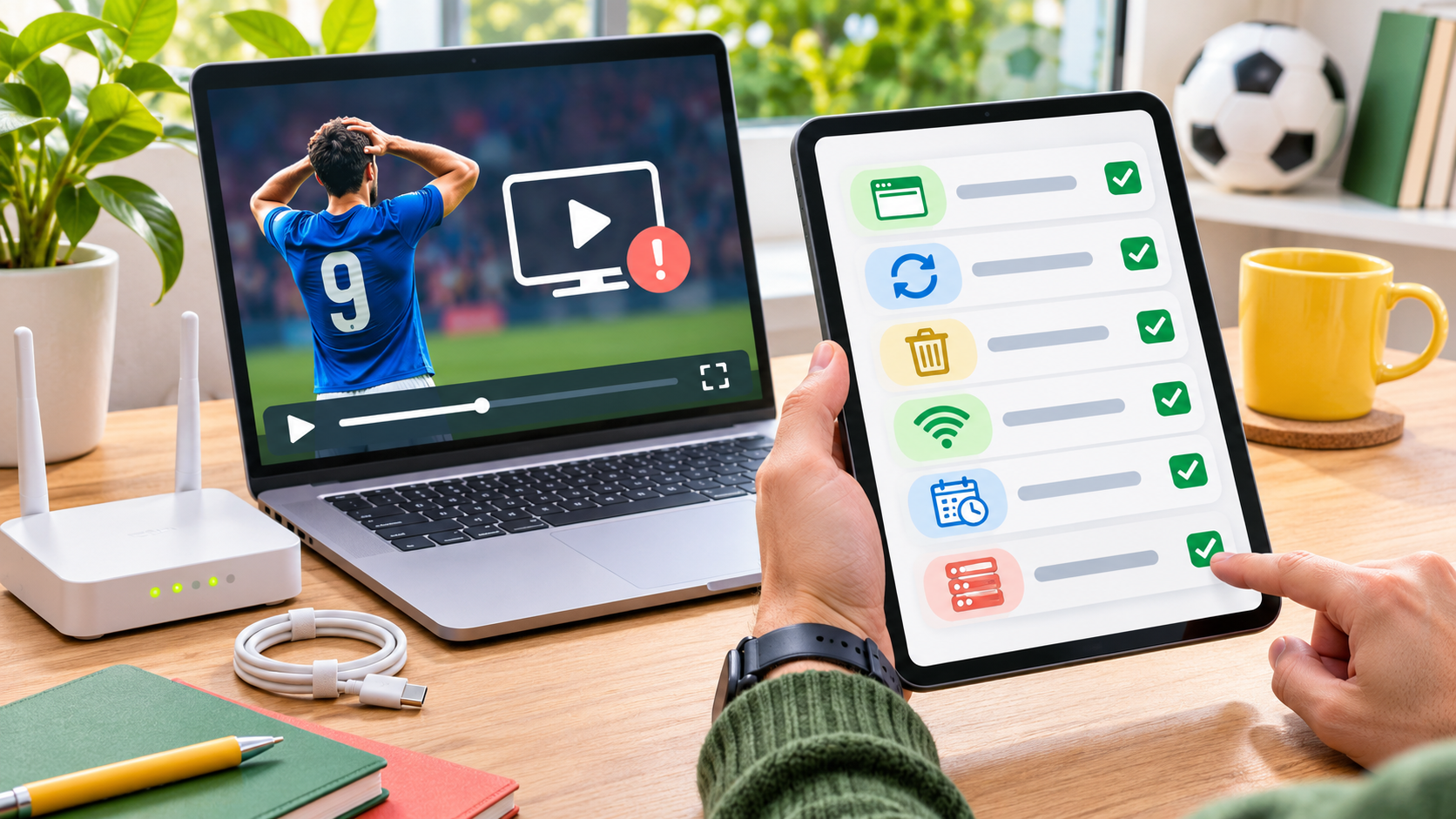
Check whether other video services work on the same network. If every video is slow, move closer to the router, pause large downloads, or connect with an available Ethernet cable. Restarting home networking equipment may help, but allow it to reconnect completely before testing again.
Comparing trusted home Wi-Fi with the phone’s normal mobile connection can reveal whether the problem is local. Monitor data usage and avoid public networks that request unusual certificates or personal details. Do not attempt to bypass access controls, workplace policies, regional rights, or legal restrictions.
Use a Clean Browser Test
Open a private browsing window to test whether old cookies or cached files are interfering with the player. If the video works there, clear site-specific data rather than deleting the entire browser history. Confirm that JavaScript, media playback, and sound are allowed for the page.
Content blockers and privacy extensions sometimes interrupt legitimate media components. Temporarily disable one extension at a time only when its source is trusted, then restore it after the test. Never install an unknown “video unlocker,” codec package, or browser add-on demanded by an advertisement.
Check Device Capacity
Close unused tabs and background applications, especially video editors, games, and large file transfers. Limited memory can freeze a player even when the network is adequate. Make sure the device has free storage for temporary browser data and operating-system functions.
Try a lower quality level if the device becomes hot or drops frames. This is a diagnostic step, not proof that the internet connection is responsible. If another supported device works normally on the same network, compatibility or processing capacity may be the more likely cause.
Recognize Service-Side Problems
If multiple devices and connections show the same error, the service or event feed may be unavailable. Check for an official status notice, confirm that the match has started, and wait briefly before retrying. Repeated refreshing can create additional load without resolving an upstream failure.
Some content may be unavailable because of licensing, location, account status, or age requirements. Respect those conditions and use an authorized alternative when available. A technical workaround should not be used to evade rules that intentionally limit access.
Avoid High-Risk Fixes
Do not provide payment information, identity documents, remote-control access, or one-time passwords to someone offering instant technical support. Reject files that claim to be mandatory players unless they come through a verified application store or documented official channel.
A safe troubleshooting sequence moves from simple checks to specific evidence: confirm the address, isolate the player error, test the local network, inspect browser data, review device capacity, and recognize service outages. When the cause remains unclear, stopping is safer than weakening device security to watch one match.