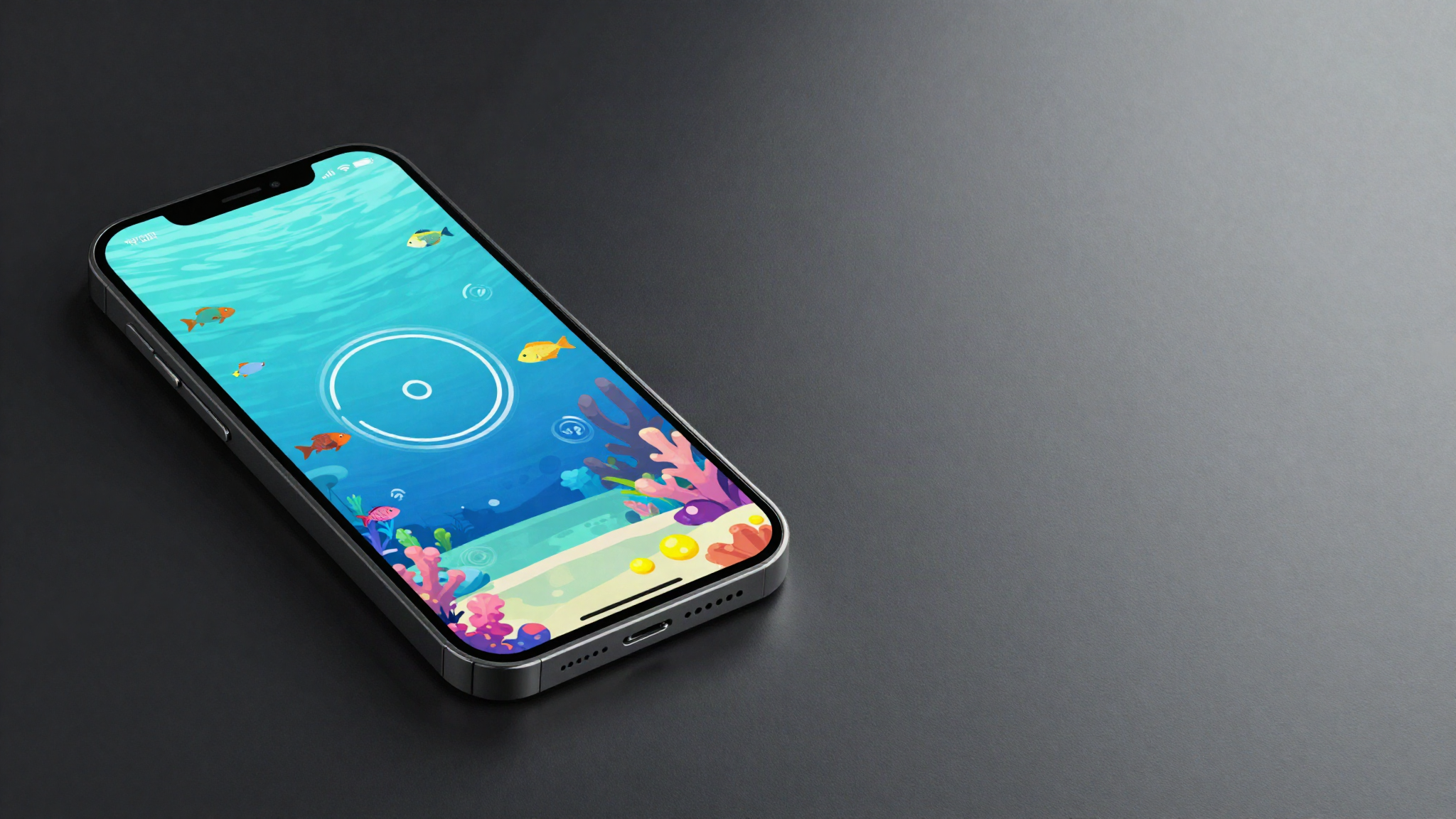
Underwater arcade games place moving targets, visual effects, sound cues, and repeated touch input on one small screen. When the experience feels inaccurate, the problem is not always the player’s timing. Touch sampling, display refresh, frame pacing, network response, and device temperature can each add a different kind of delay. Testing these layers separately makes the interface easier to understand and helps users avoid reacting to technical problems as though they were part of the game.
Contents
- Distinguish Touch Delay From Visual Delay
- Understand Frame Pacing, Not Just Frame Rate
- Check the Interface Before a Full Session
- Read the Game Rules as Interface Documentation
- Improve Touch Accuracy Without Risky Tools
- Use Haptics and Sound as Secondary Feedback
- Watch Temperature, Brightness, and Battery Load
- Run a Short Responsiveness Check
Distinguish Touch Delay From Visual Delay
Touch delay is the time between contact with the screen and the device registering that contact. Visual delay appears when the game has registered an action but cannot draw the response smoothly. Test the difference by tapping a static menu button several times at a relaxed pace. If the button reacts immediately while moving scenes appear uneven, rendering is the more likely issue. If even static controls respond inconsistently, examine the screen, browser, and background load.
Understand Frame Pacing, Not Just Frame Rate
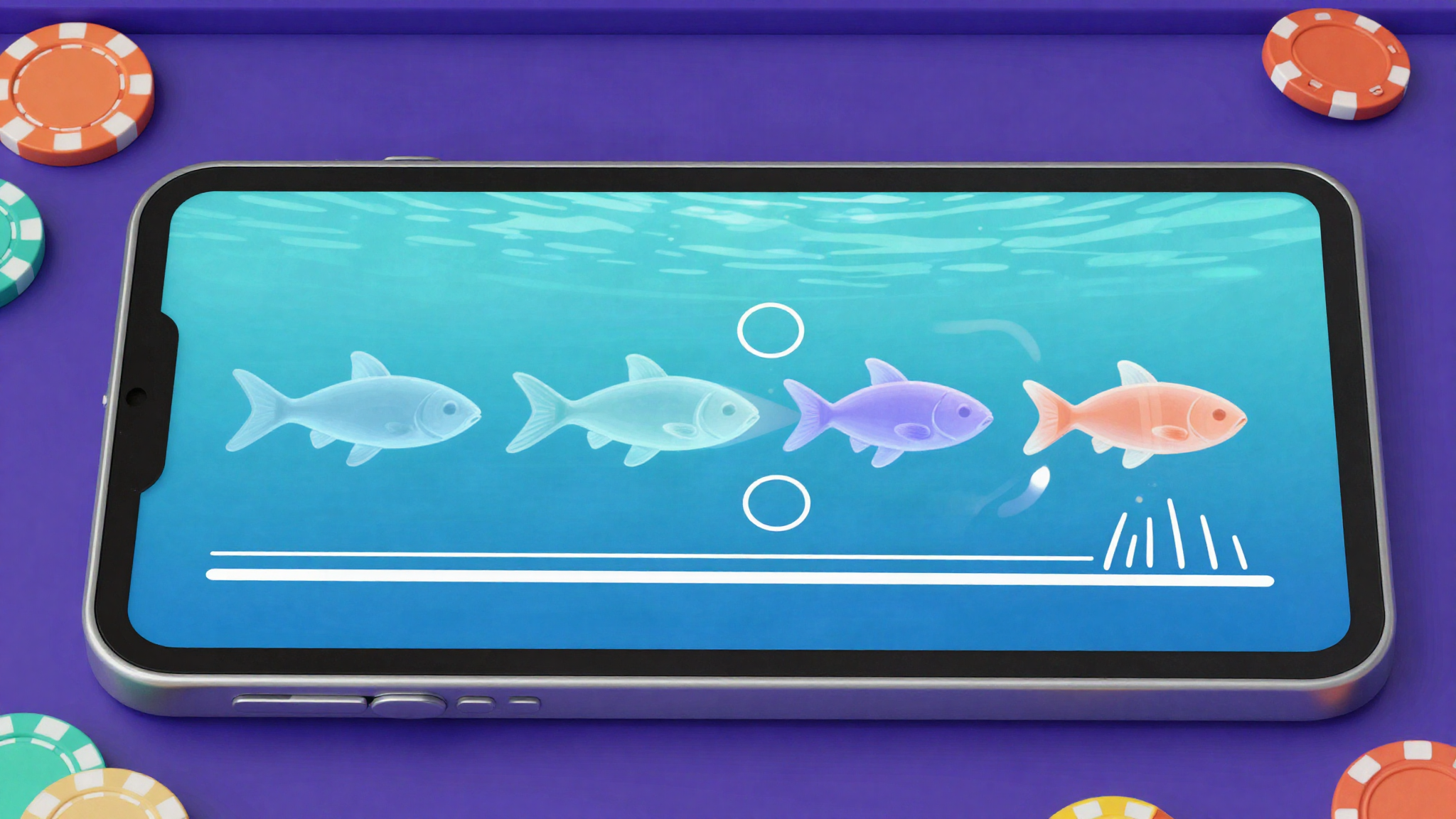
A high average frame rate can still feel poor when individual frames arrive at irregular intervals. Smooth motion depends on consistent frame pacing, especially when small targets cross the display. Sudden animation jumps can make an object appear farther ahead than expected. Reduce decorative effects if the interface offers that option, close demanding background apps, and avoid testing while the phone is installing updates. Stable motion is more useful than a brief peak in speed.
Check the Interface Before a Full Session
When examining a mobile service associated with zowin, begin with menus and nonfinancial screens. Confirm that touch targets are large enough, controls do not overlap, and important states remain visible in both portrait and landscape orientation. A responsive animation does not prove that a remote action has been confirmed. Look for a separate status indicator, timestamp, or history entry before assuming that an input reached the system.
Read the Game Rules as Interface Documentation
A page labeled bắn cá zowin may help users locate the relevant game section, but each title can use different controls, object values, round conditions, or settlement methods. Read the complete rules before interacting. Identify how an action is confirmed, whether targets are shared, what happens during a disconnect, and how completed activity appears in the record. Never infer those details from visual effects alone.
Improve Touch Accuracy Without Risky Tools
Clean and dry the display, remove a damaged screen protector, and check whether accessibility gestures conflict with rapid taps. Use the operating system’s official touch or pointer settings where available. Avoid calibration apps that request accessibility control, screen capture, messages, or account credentials. They cannot create genuine hardware precision and may introduce privacy risks. If one area of the screen repeatedly misses input across several apps, the device may need professional inspection.
Use Haptics and Sound as Secondary Feedback
Vibration and audio can confirm input, but neither should be the only signal. Sound may be muted, haptics may be disabled, and both can lag under heavy load. A clear interface also changes the control’s shape, border, or state on screen. Test feedback at a moderate volume and avoid headphones loud enough to hide surroundings. If effects become distracting, reduce them one at a time rather than changing several settings together.
Watch Temperature, Brightness, and Battery Load
Bright aquatic scenes and continuous animation can keep the display and processor active. Heat may cause the phone to reduce performance, producing stutter after an initially smooth start. Lower brightness, remove a heat-trapping case when safe, and avoid long sessions while fast charging. Stop if the device becomes unusually hot, the battery swells, or the screen lifts from the frame. Allow the phone to cool naturally and never place it against ice.
Run a Short Responsiveness Check
- Restart the game page and confirm that no old round remains on screen.
- Test static buttons before judging moving targets.
- Compare local animation delay with remote confirmation delay.
- Change one graphics or feedback setting at a time.
- End the test if heat or missed inputs continue to increase.
Chance-based arcade services may be restricted by location and age. Technical improvements cannot remove financial risk or guarantee outcomes. Set time and spending limits before starting, never use borrowed money, and do not extend a session to recover a loss. The purpose of responsiveness testing is to make device behavior clearer. When the interface, connection, or decision-making becomes uncertain, the safest input is to stop.