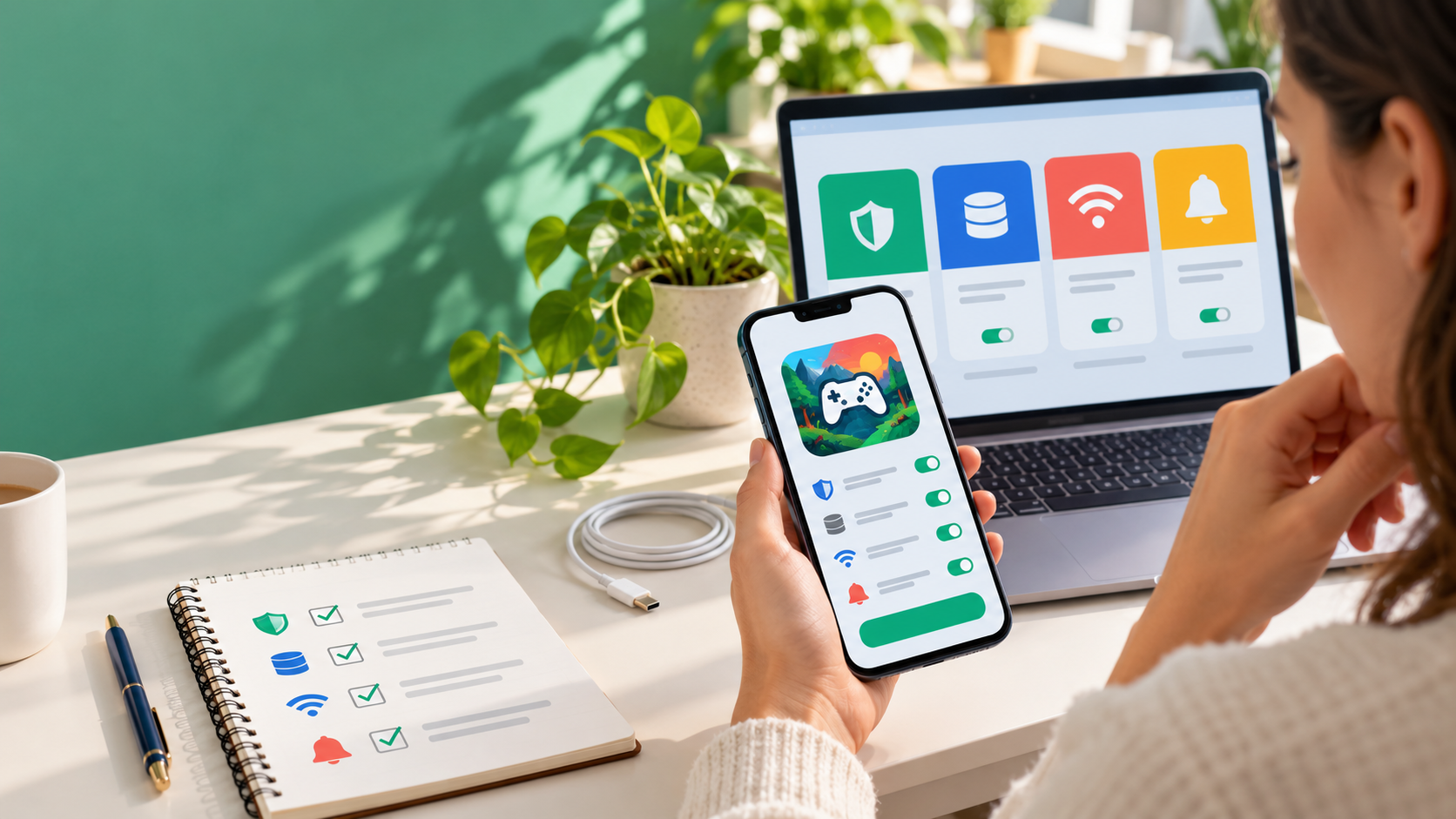
Installing a mobile gaming application should be a deliberate decision, not a reaction to a large download button or an urgent message. The installer can affect storage, battery use, privacy, and account security long after the first session ends. Before interacting with an app connected to e39 or any similar service, users should verify the source, understand requested permissions, and decide what information they are prepared to share.
Contents
Confirm the Source Before Downloading
Begin at a known website or the official store listing rather than a link forwarded through a chat, advertisement, or shortened URL. Check the domain carefully for added letters, unusual subdomains, and spelling substitutions. A page offering tải app e39 should provide clear platform instructions instead of pushing an unidentified file immediately.
On Android, note whether the installation requires permission to use files from outside the standard store. That setting increases responsibility because the store’s normal review process may not apply. On iOS, be cautious of requests to install unfamiliar configuration profiles or enterprise certificates. Stop if the process asks users to disable several protections without explaining why.
Check Compatibility and Storage
Compare the app’s operating-system requirement with the device version. An outdated phone may install the file but fail during login, updates, or gameplay. Review both the initial download size and the additional storage that may be required for game assets, caches, and future updates.
Keep enough free space for the operating system to work normally. A phone close to its storage limit may become slow or fail to complete an update. If the app provides optional content packs, install only those that will actually be used.
Review Every Permission
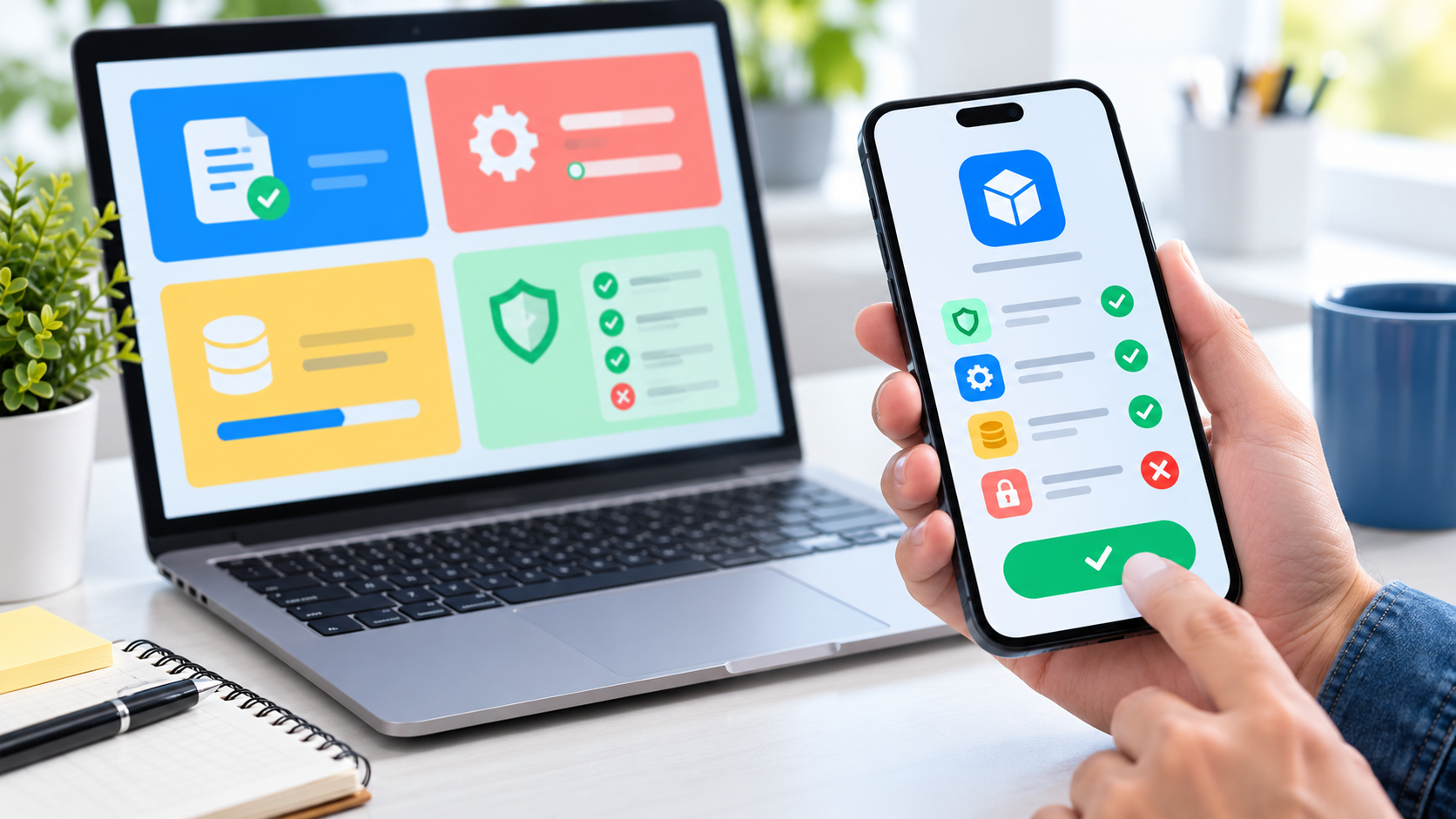
Permissions should match visible features. Network access and notifications may be understandable, while contacts, precise location, microphone, camera, or full photo-library access require a specific reason. Do not approve everything simply to pass the first screen.
Choose limited photo access when only an avatar upload is needed. Location can often remain disabled unless a lawful regional service genuinely depends on it. Review permissions again after installation because some applications request additional access only when a particular feature opens.
Protect the Account From the Start
Create a unique password that is not used for email, banking, or social accounts. Enable multi-factor authentication when available and store recovery codes somewhere separate from the phone. Never share one-time codes with a person claiming to provide support.
Verify that account recovery and support channels are clearly identified. Before adding sensitive information, read how identity documents are handled and whether deletion can be requested. Avoid saving payment details automatically unless there is a clear need and the device itself is protected by a secure lock.
Run a Controlled First Session
After installation, open the app on a trusted network and observe its behavior for a short period. Check whether it becomes unusually warm, drains battery quickly, launches unexpected browser pages, or continues heavy network activity after being closed.
Keep notifications disabled initially and enable only useful categories later. If promotional alerts appear despite being turned off, review both the app’s settings and the operating system’s notification controls. Do not install a second “helper” application simply because a pop-up recommends it.
Understand Updates and Version Changes
An update should come from the same verified channel as the original installation. Check the version number and release notes before replacing a working app with a file received through a message. Revisit permissions after major updates because new features may request new access.
Automatic updates are convenient when the distribution source is trusted. For manually installed files, establish a routine for checking authenticity rather than downloading every new package immediately. Keep the previous account recovery information available in case an update causes login problems.
Know How to Leave Cleanly
Before uninstalling, check whether account deletion, transaction history, or saved data requires a separate action. Removing the icon does not necessarily remove an online account. Export any information that must be retained, then clear stored files and revoke permissions.
A trustworthy installation process gives users time to inspect what is being added to the device. Source verification, limited permissions, account protection, controlled testing, and a clear exit path are more important than speed. If any stage feels unnecessarily secretive or urgent, the safest choice is to pause the installation.