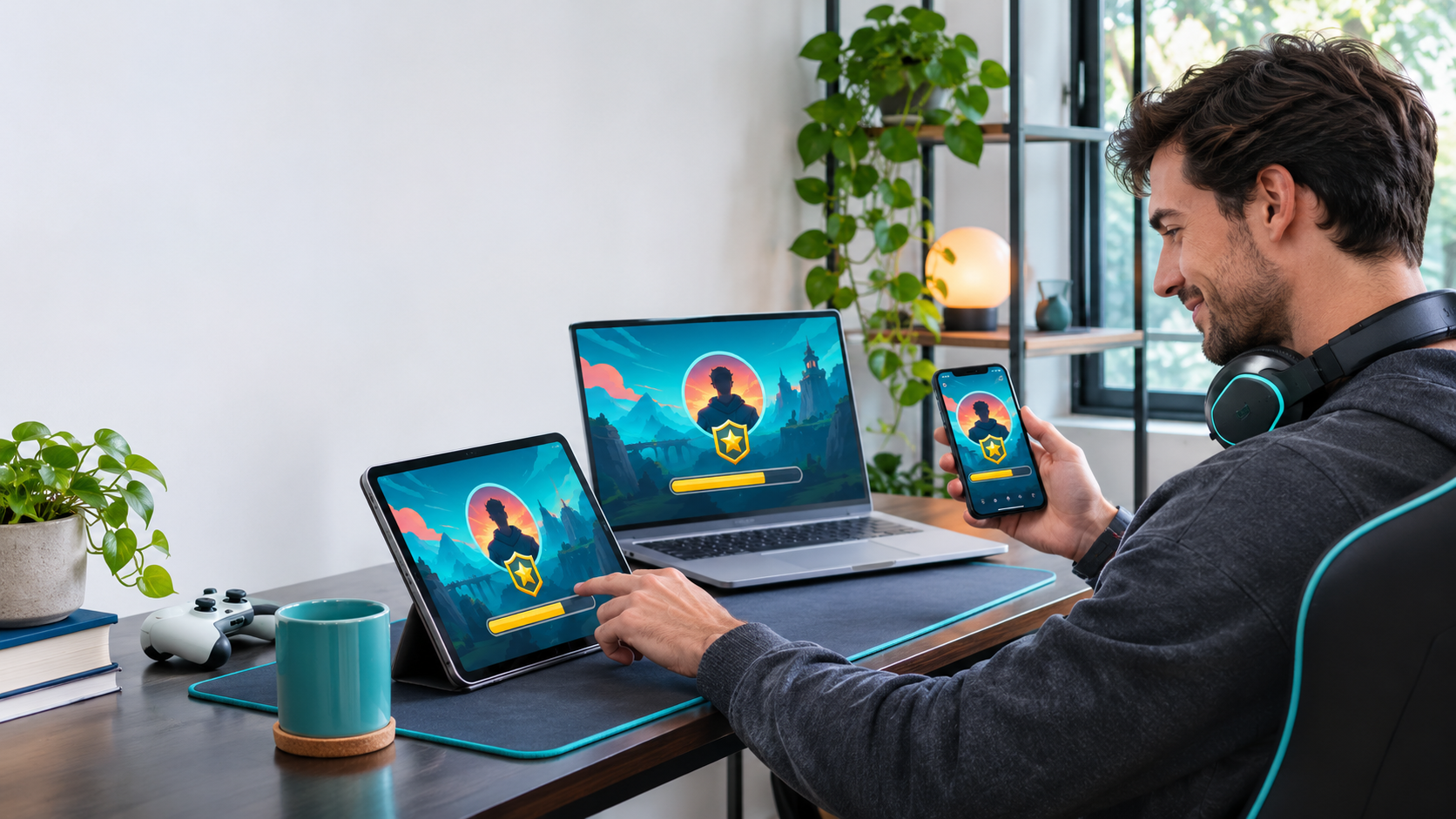
Switching from a phone to a tablet or computer can make gaming more convenient, but it may also create confusion when progress does not appear immediately. Achievements, preferences, and account history can be stored locally, online, or through a combination of both systems. Before accessing a platform such as e39 from another device, players should understand how account synchronization works and take a few precautions to avoid overwriting current data.
Contents
Identify Where the Game Stores Progress
Some games save every change directly to an online account, while others keep part of the data on the device. A cloud-based account usually allows progress to follow the player after a successful sign-in. Local saves, however, may remain on the original phone or tablet unless the application provides a backup or transfer function.
Check the account, storage, or synchronization section before changing devices. Look for a recent sync time or confirmation symbol. If this information is unavailable, complete the current session normally and wait briefly before closing the application. This gives the platform time to send the latest data to its server.
Use the Same Account Method
A common mistake is selecting a different authentication method on the new device. An email login and a connected social account may lead to separate profiles even when they appear to belong to the same person. The result can look like lost progress when the application has actually opened another account.
Use exactly the same method that was used on the original device. If the profile was created with an email address, continue with that address instead of choosing a convenient third-party option. Confirm the displayed username or profile details before starting a new session.
Confirm the Correct Sign-In Page
When opening an account through a browser, begin with a saved address or manually enter the official domain. A dedicated page such as tải app e39 should be checked carefully before any credentials are submitted. Similar-looking domains, unexpected spelling changes, and unrequested downloads are reasons to stop and verify the destination.
A password manager can help because it normally fills credentials only on a recognized domain. Two-step verification should also be enabled when available. It adds an additional confirmation stage if someone attempts to access the account from an unfamiliar device.
Finish One Session Before Starting Another
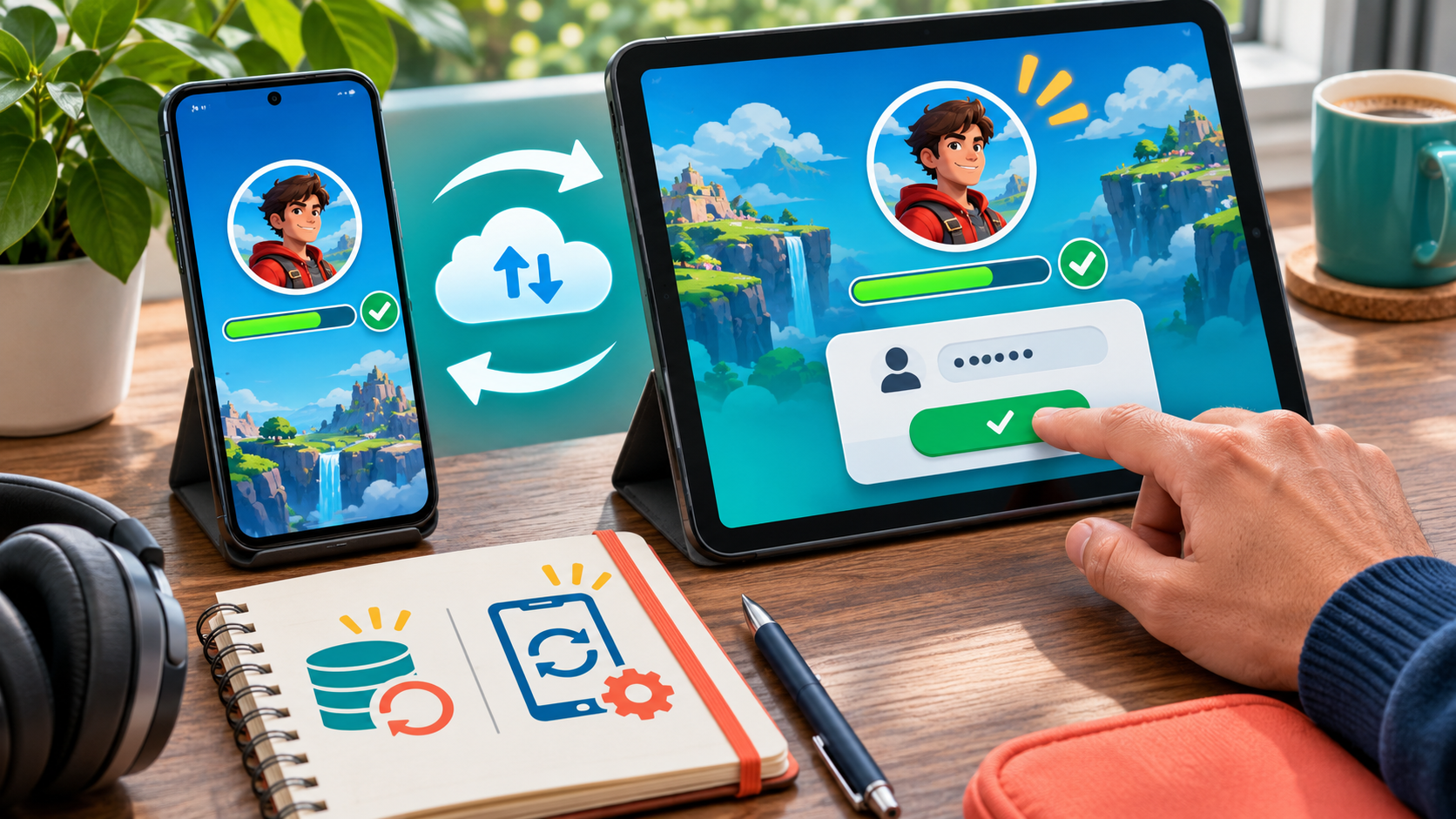
Running the same game on two devices simultaneously may create conflicting versions of progress. One device could upload an older save after the other has already completed a newer session. Platforms handle these conflicts differently, and the result is not always predictable.
Close the game completely on the first device before opening it elsewhere. After signing in on the second device, verify the profile level, recent activity, preferences, and other recognizable details. Do not continue playing if the information appears outdated. Reopening the original device may allow the latest data to synchronize correctly.
Update the Application on Both Devices
Synchronization problems can occur when devices run different application versions. A newer release may change data formats, introduce additional features, or correct an earlier account issue. Update both installations before attempting a transfer, preferably over a stable internet connection.
Operating-system updates can matter as well. An outdated system may block background activity or prevent an application from using its current security components. Restarting the device after an update clears temporary processes and gives the application a clean environment in which to reconnect.
Avoid Clearing Local Data Too Early
Deleting an application, clearing its storage, or resetting a device can remove local information permanently. Do not perform these actions until the new device displays the expected profile and progress. If screenshots, account identifiers, or transaction records are relevant to recovery, preserve them before making changes.
Remember that clearing a browser cache is different from deleting an account, but it can remove saved sessions and local preferences. Make sure recovery contact details are current so that access can be restored if the browser asks for verification again.
Troubleshoot Missing Progress Methodically
If progress is missing, first confirm the account identifier rather than repeatedly signing in and out. Next, check the internet connection, application version, server-status notices, and the time of the last completed session. Avoid creating new progress on an apparently empty profile because it may complicate recovery.
When contacting support, provide concise information: the account identifier, device models, operating-system versions, approximate time of the last correct session, and a description of what is missing. Passwords and one-time verification codes should never be included in a support message.
Make Device Switching a Routine
A reliable transfer process is simple: finish the current session, confirm synchronization, close the application, update the new device, sign in through the verified address, and inspect the profile before continuing. Keep recovery information current and avoid leaving active sessions on devices that are shared, sold, or no longer used.
Following the same sequence every time reduces uncertainty and protects continuity. Cross-device gaming works best when account access, software versions, and synchronization are treated as connected parts of one process rather than separate technical details.