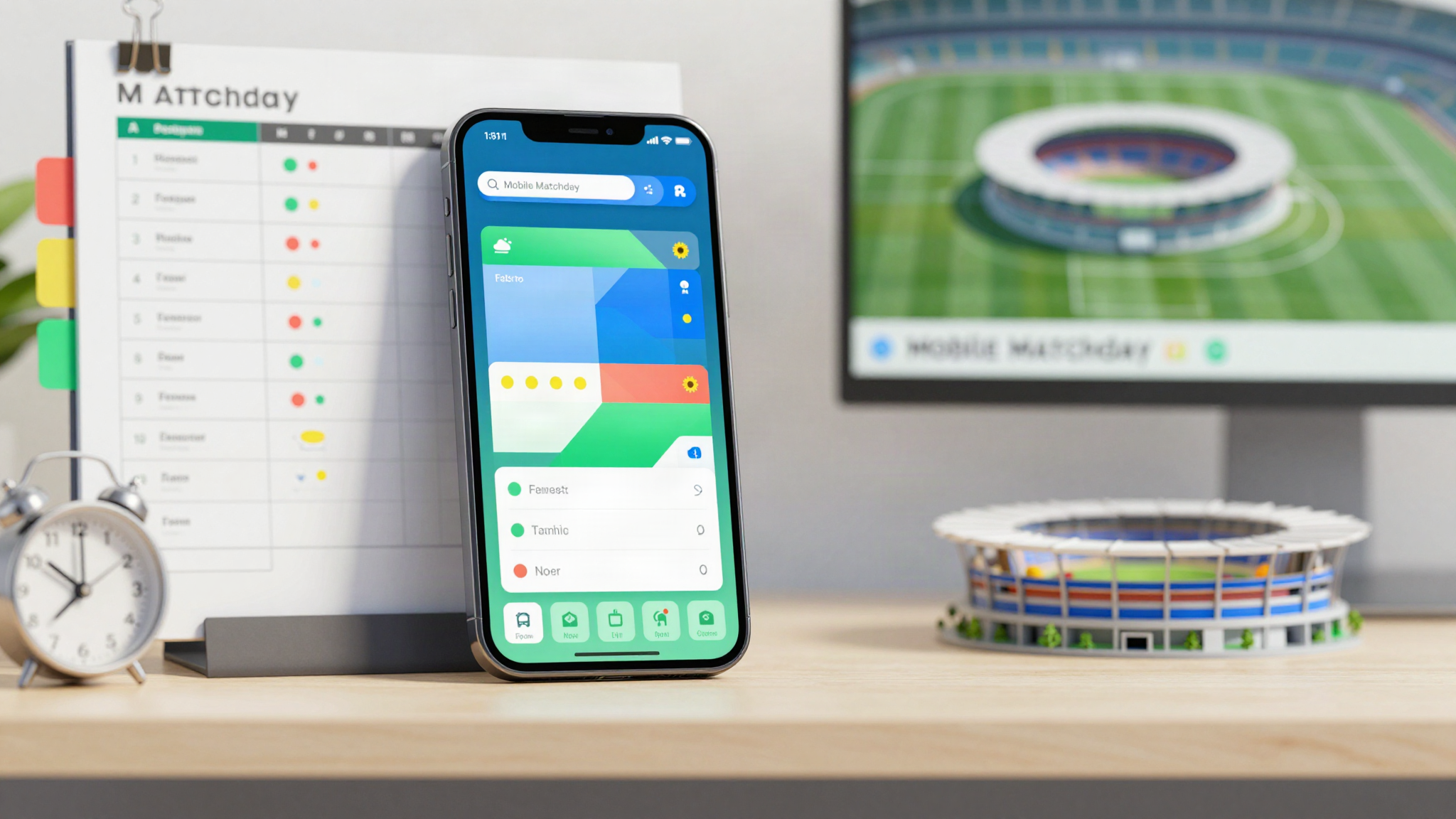
A busy sports day can place dozens of fixtures, score alerts, lineup reports, and schedule changes on one small screen. More information does not automatically produce a better experience. A useful matchday dashboard should answer three questions quickly: what is happening, when does it start in the viewer’s time zone, and which updates genuinely require attention?
Contents
- Build the Day Around a Single Timeline
- Make Time-Zone Handling Visible
- Keep Source and Section Context Intact
- Give Each Sport Its Own Useful Filters
- Use Status Language Consistently
- Choose Notifications by Event, Not by App
- Preserve Favorites Without Creating Clutter
- Verify Data Before Acting on It
- A Practical Matchday Setup
Build the Day Around a Single Timeline
Start with a chronological view rather than separate lists that force constant switching. Each fixture should show the competition, participants, local start time, and current state in a consistent position. Group events into upcoming, live, paused, delayed, and finished sections, but preserve their order within each group. A clear “last updated” indicator also helps users distinguish a current screen from a cached tab that has been open for several hours.
Make Time-Zone Handling Visible
International competitions create avoidable confusion when a dashboard silently changes between venue time and device time. Choose one default time zone and label it near the schedule. If conversion is available, display the alternative without replacing the original record. Day boundaries deserve special care: an event listed late at night in Europe may appear on the following calendar date in Asia. Filters should therefore use the viewer’s selected zone, not an unexplained server clock.
Keep Source and Section Context Intact
A bookmark or entry point such as e39 should be treated as one source within a broader research routine. Record when it was checked, then confirm essential schedule information against the competition organizer or another independent source. Navigation should preserve context as well. After opening an event and returning to the dashboard, the chosen date, sport, and scroll position should remain unchanged rather than resetting the user to the top.
Give Each Sport Its Own Useful Filters
Generic filtering by “live” or “finished” is not always sufficient. Football viewers may need competition and kickoff filters, while tennis followers may care about court, round, or match format. A dedicated area such as Thể thao E39 can be evaluated by checking whether its categories match the information shown inside each event. Filters should narrow the schedule predictably and offer a clear reset control.
Use Status Language Consistently
Live data is easier to scan when every state has one meaning. “Scheduled,” “delayed,” “postponed,” and “canceled” should never be represented by nearly identical colors alone. Pair color with a recognizable icon or label so the state remains understandable for users with limited color perception. When an event is interrupted, retain its original start time and add the new status instead of replacing the schedule entry with an unexplained blank.
Choose Notifications by Event, Not by App
An all-or-nothing notification switch creates noise. Better controls let users follow one fixture and select the events that matter: start reminder, official lineup, score change, period break, delay, or final result. Avoid activating every category by default. A ten-minute reminder and a final result may be enough for one match, while another may need no alerts at all. Quiet hours should respect the device’s local time and remain easy to override.
Preserve Favorites Without Creating Clutter
Favorites should behave as a lightweight personal filter, not a second crowded homepage. Let users save a team, competition, or individual fixture separately. Archived events should leave the active view automatically while remaining available in history. Synchronization across devices is useful, but it should be optional and accompanied by a clear explanation of what account data is stored.
Verify Data Before Acting on It
Score feeds and schedules can lag during heavy traffic or connection changes. Before relying on an update, check its timestamp and refresh status. If two screens disagree, do not assume the newest-looking interface has the newest information. Compare update times and consult an official source. The same principle applies to statistics: confirm whether figures cover the full match, the current period, or a selected competition stage.
A Practical Matchday Setup
- Select the correct date and time zone.
- Filter only the sports and competitions being followed.
- Save individual fixtures instead of entire alert categories.
- Enable only necessary notification types.
- Check timestamps after reconnecting or reopening the app.
- Confirm major schedule changes with an official source.
A calm dashboard is not the one displaying the most data. It is the one that preserves context, explains status, and allows irrelevant updates to stay silent. Keep entertainment within sensible time limits, follow applicable local rules, and treat any sports data as information rather than a promise about future results.