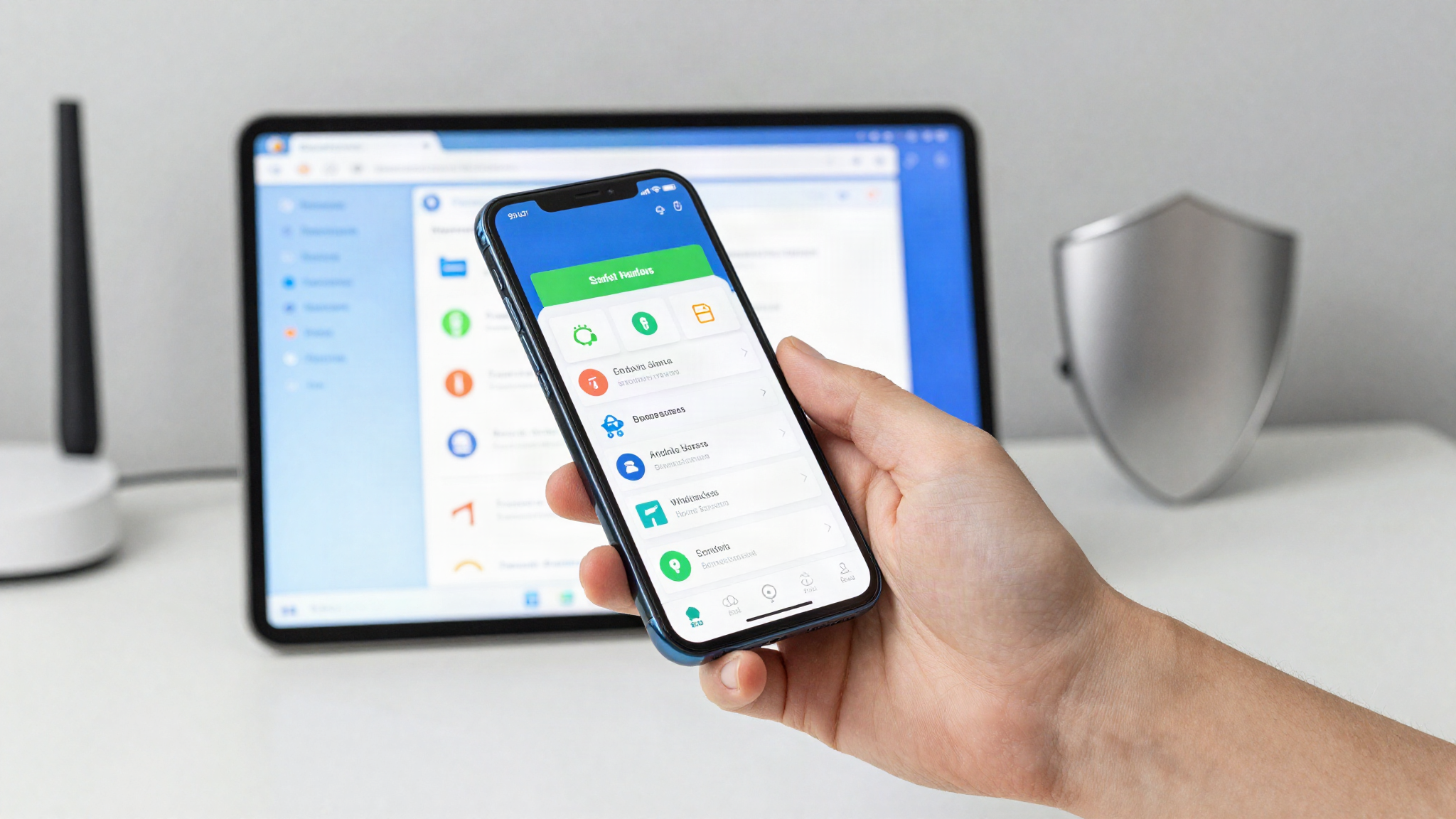
Android users do not always need a native application to reach a mobile gaming platform quickly. Modern browsers can place a website shortcut on the home screen, and some services can operate like installed web apps. The result may look similar to a regular application, but its storage, permissions, updates, and removal process work differently.
Before adding go88 or another gaming website to the home screen, users should verify the complete domain. A shortcut preserves the selected destination, so creating one from an imitation page can make an unsafe address appear permanent and trustworthy.
Contents
- Understand What Android Is Adding
- Verify the Final Address First
- Create the Shortcut Through the Browser Menu
- Review Website Permissions
- Control Notifications
- Know Where Data Is Stored
- Protect the Login Session
- Understand How Updates Work
- Troubleshoot Without Deleting Everything
- Remove the Shortcut Completely
- Keep Personal Limits in Place
Understand What Android Is Adding
A basic shortcut is an icon that opens a saved page in the browser. A progressive web app can launch in its own window, retain selected resources, send permitted notifications, and provide a more application-like interface.
Neither option automatically proves that the website is authentic. The browser may install the experience correctly even when the underlying domain belongs to an unrelated operator.
Verify the Final Address First
Open the address bar and inspect every part of the domain before selecting “Add to Home screen” or “Install app.” Look for substituted characters, unexpected subdomains, and redirects to a different destination.
The connection should use HTTPS without certificate warnings. HTTPS protects traffic in transit, although it does not independently establish that the platform is trustworthy or legally available.
Use the browser’s normal installation or home-screen command instead of downloading a separate shortcut application. Android may display the site name, icon, and destination before confirmation.
Check those details carefully. Avoid assigning a misleading label that makes the shortcut difficult to distinguish from an unrelated native app already installed on the phone.
Review Website Permissions
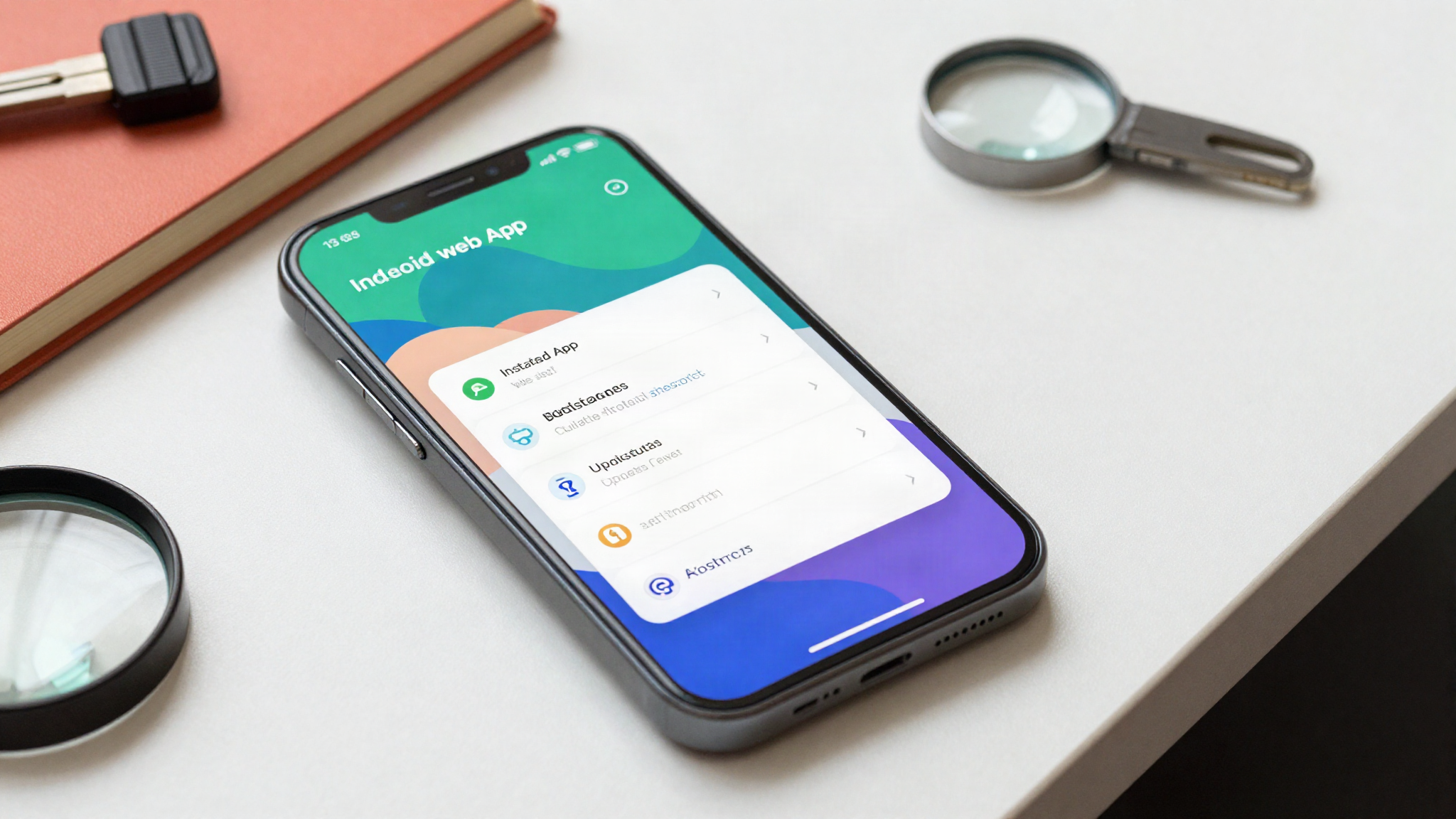
A web app can request access to notifications, location, camera, microphone, clipboard, downloads, or pop-ups. Ordinary gaming access rarely requires all of these capabilities.
Grant permissions individually and only when their purpose is clear. Android and the browser allow users to revoke them later without necessarily deleting the shortcut.
Control Notifications
Security and transaction alerts may be useful, while frequent promotional notifications can become disruptive. Browser settings often list website notifications separately from native application alerts.
Hide sensitive previews on the lock screen so account information is not visible before the phone is unlocked. Remove notification permission completely when the site no longer needs to send alerts.
Know Where Data Is Stored
Browser-based services may save cookies, cached images, local preferences, and session information. A web app can therefore continue using storage even though it does not appear like a conventional package in the application list.
Users returning through https://go88app.co/ should know where the browser displays site storage and permissions. Clearing this data may sign the account out and reset local preferences.
Protect the Login Session
Use a unique password and additional authentication where available. Do not save credentials on a shared phone, and never provide a password or one-time code to someone claiming to offer technical support.
An icon on the home screen does not guarantee that every later login page is authentic. Recheck the domain after unusual redirects, design changes, or unexpected authentication requests.
Understand How Updates Work
A web app normally receives interface updates from the website when it loads. Users do not install a new Android package for every change, although cached resources may occasionally display an older version.
If the platform suddenly asks for an APK, browser extension, certificate, or configuration profile, treat that as a separate installation request. Verify its source rather than assuming it belongs to the existing shortcut.
Troubleshoot Without Deleting Everything
When the shortcut stops loading correctly, test the website in a normal browser tab and check the network connection. Clearing only the site cache may resolve an outdated interface while preserving unrelated browser data.
Confirm that recovery details are available before clearing cookies or all site storage. Repeated login attempts can trigger a temporary security lock when the remembered password is outdated.
Remove the Shortcut Completely
Deleting the icon removes home-screen access but may leave cookies, permissions, and cached files in the browser. Review the site settings separately and erase remaining data when the service is no longer used.
Removing a shortcut also does not close the online account. Account closure, withdrawal of consent, and data-deletion requests generally require separate actions through the platform’s settings or support process.
Keep Personal Limits in Place
A convenient home-screen icon can make a gaming service easier to open repeatedly. Android app timers, Focus mode, and scheduled notification restrictions can help preserve deliberate boundaries.
Paid participation must comply with local laws and minimum-age requirements. Use only a fixed entertainment budget, never essential or borrowed funds, and do not chase losses. A web app shortcut improves access, but it does not make uncertain game outcomes predictable.